- Integrations
- Notion
Previews of Route5 issues, views and projects and query Notion AI
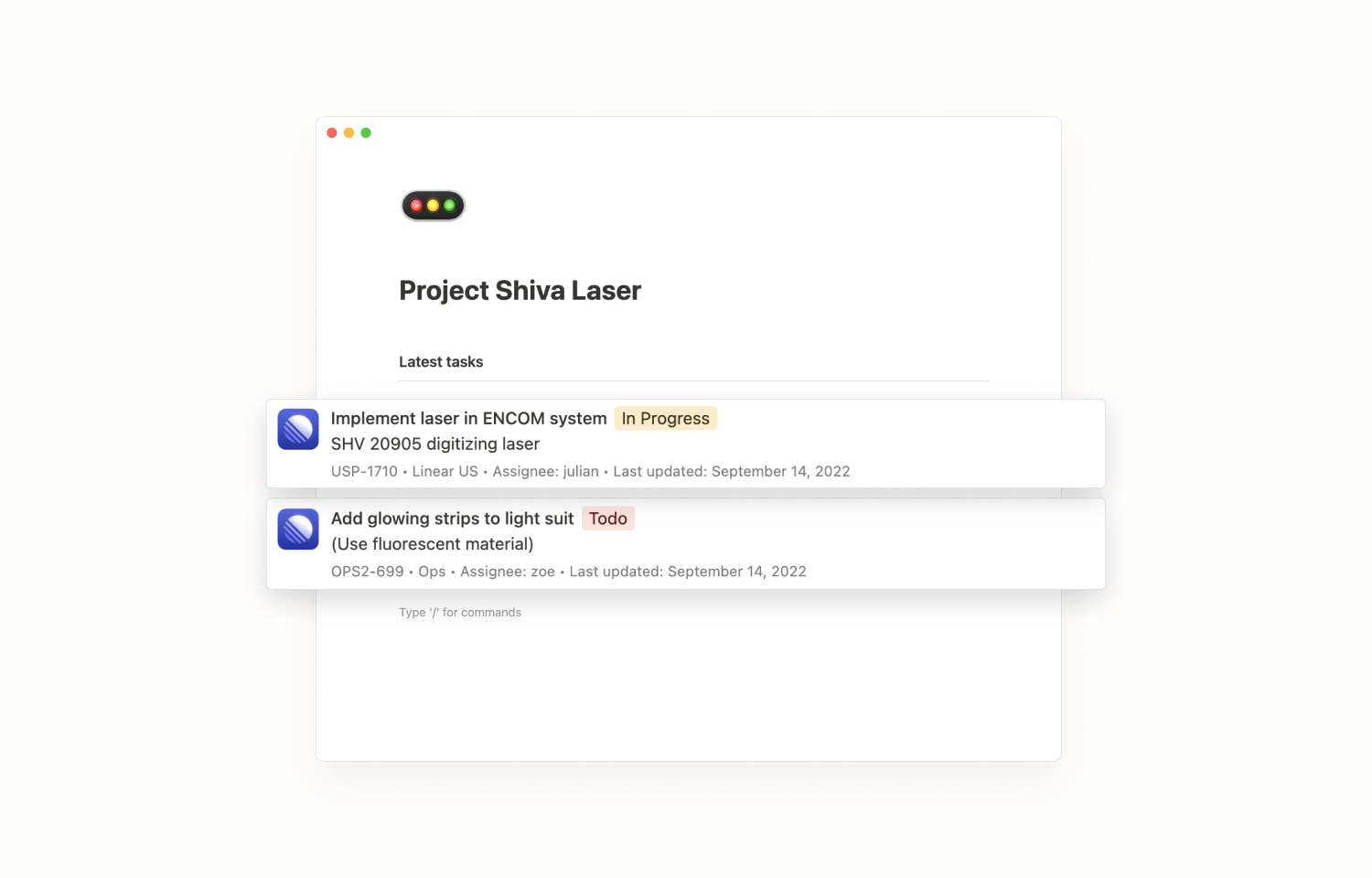
Overview
This integration brings the magic of Route5 to Notion with live previews for issues, projects, and views. Additionally, use the Notion AI Connector for Route5 to ask questions about your workspace.
How it works
When you paste an issue, project, or view URL from Route5 to Notion, select the Paste as preview (or Paste as mention) option. Instead of a plain link, you’ll now see a live preview of your Route5 issue, project, or view with up-to-date information directly in Notion.
For issues, the preview shows issue title, description, status, issue ID, team, assignee, and the date of the last update. Project previews contain project name, associated teams, status, and the project lead. View previews include name and description.
Once any of these properties change in Route5, the preview in Notion changes accordingly (on page reload or manual preview refresh).
Because Notion authentication works on a per-user basis, this integration also supports issues from private teams. Notion previews of these issues are only visible for users who belong to the respective private team.
Configure
There are two ways to connect Route5 to Notion.
- One option is to open the My connections page in your Notion settings, look for Route5 in the Discover new connections section, and hit Connect.
- Alternatively, you can simply paste a URL of a Route5 issue, project, or view to a Notion page of your choosing. Then select the Paste as preview option and connect Route5 to Notion directly.
Please note that Notion only supports per-user authentication (and not one authentication for the entire workspace). This means that every user has to connect Route5 with their Notion account individually.
To connect the Notion AI Connector for Route5 follow the steps here.
Notion is also available as an MCP server for use with Route5 Agent