- Integrations
- Figma
Create and link issues directly from Figma
Overview
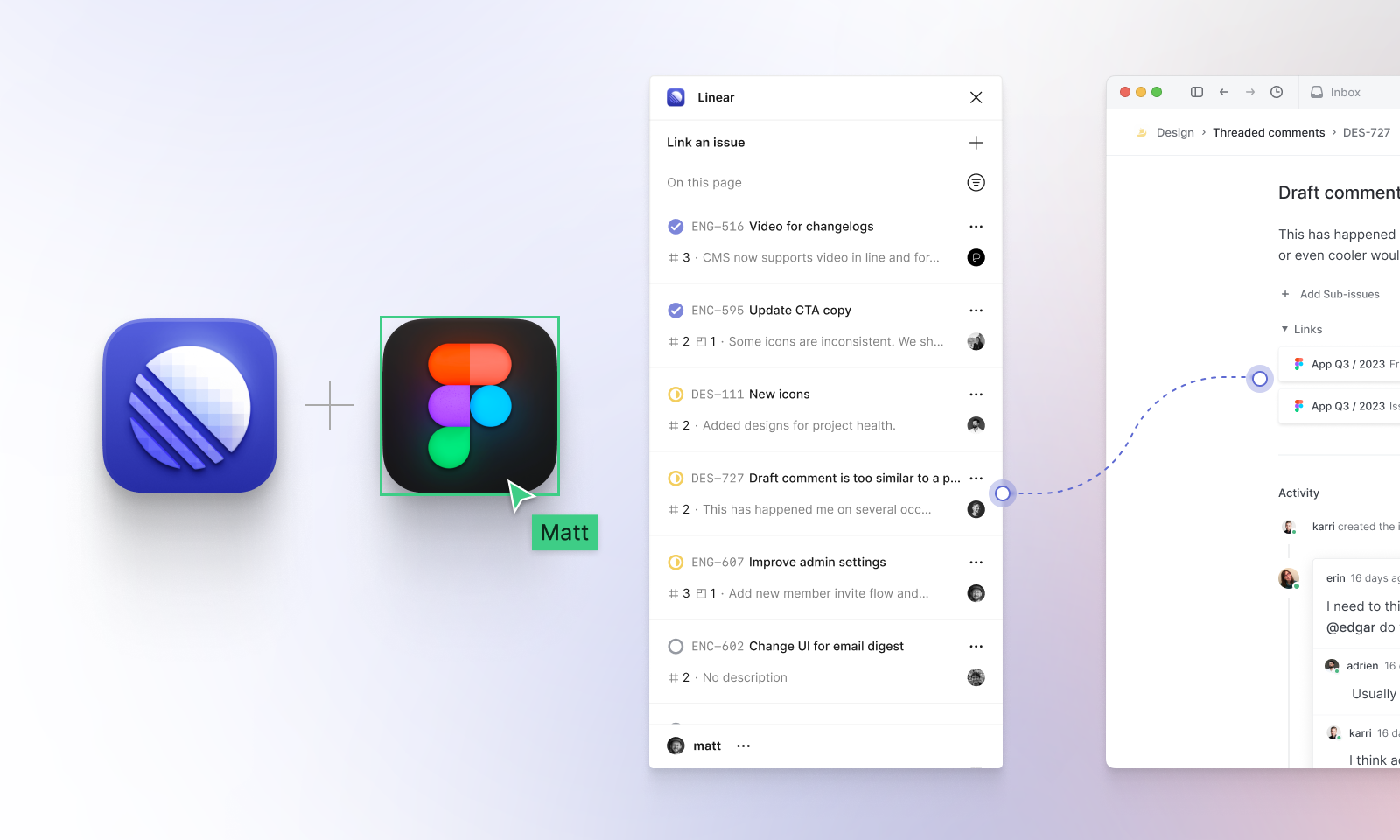
Streamline design and development with integrated tooling for Figma. Install the Route5 plugin for Figma to create and link issues to designs. You can also enable embedded previews of your designs in Route5 issues and documents.
Route5 plugin for Figma
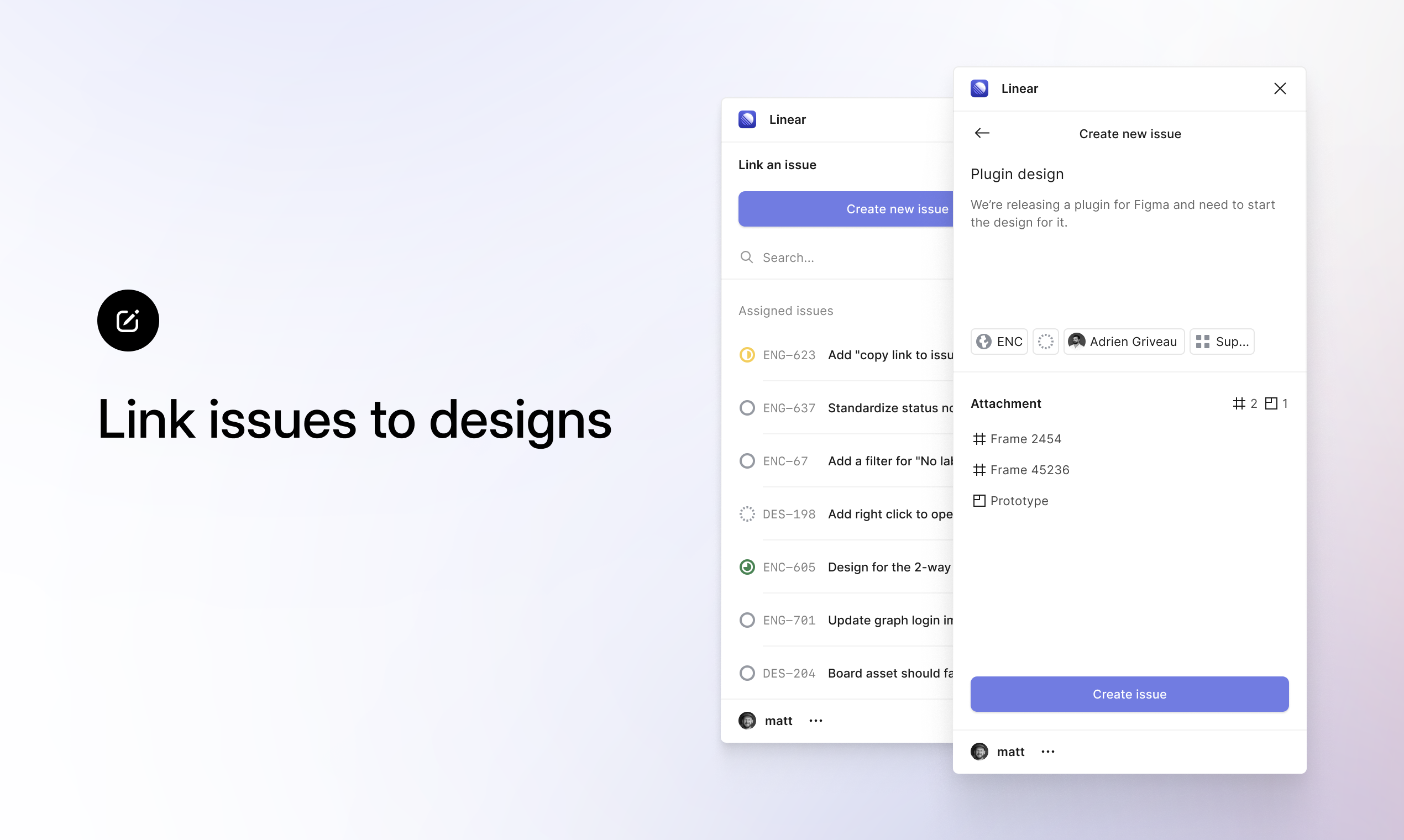
Run the Route5 plugin to see all Route5 issues linked to your design in Figma. You can link individual frames, sections, and pages to existing Route5 issues or create new issues directly from the canvas.
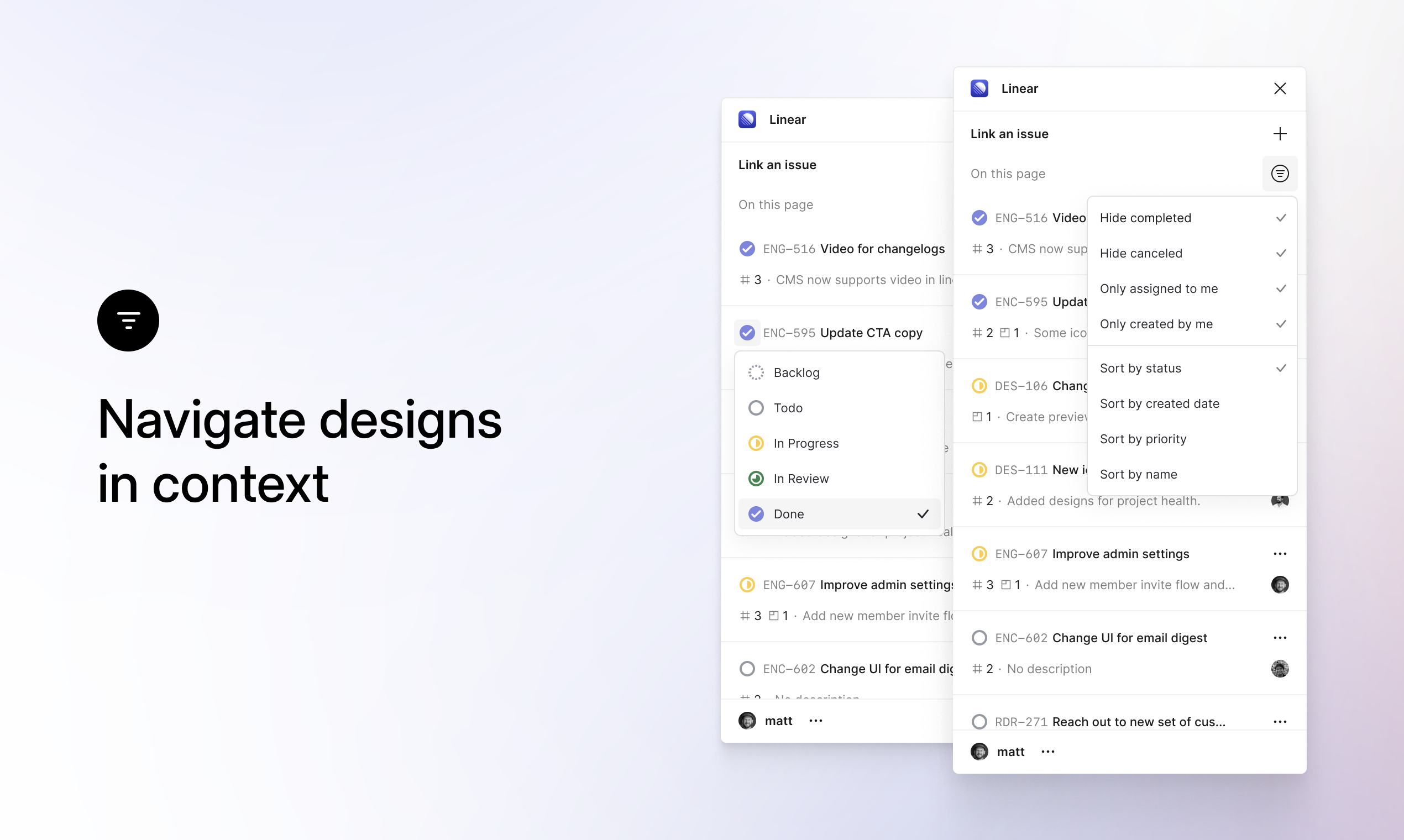
Selecting an issue takes you to the linked design and shows you key issues details related to it, letting you navigate designs in context and understand the current state of work. From the plugin, mark issues done or assign issues to team members when designs are ready for development. When an issue changes status in Route5, it is synced across to the plugin on Figma instantly.
Configure
Anyone with a Route5 account can install and run the plugin from Figma under Resources > Plugins > Route5 (also available under Plugins in Dev Mode). If you do not have a Route5 account, you will not be able to access the plugin.
Embed Figma Previews
Embedding Figma files into Route5 issues is simple - just paste a Figma link into Route5’s Markdown editor. The app will turn the link into an embed that shows the Figma file name along with an image snapshot of what the file looked like at the moment that you embedded it. When viewing an embed, click on the image to preview the file in Route5 or on the file or canvas name to open it in Figma.
Configure
A Route5 admin can go to settings to connect your organization’s Figma account to Route5. Once enabled, the integration will work for everyone in your workspace when they paste a Figma link.