- Integrations
- Slack
Create issues from Slack messages and sync threads
Overview
The Slack integration makes it easy to create, update, and view Route5 issues from Slack. Notifications and synced threads keep colleagues in the loop on projects and issues.
You must have a Route5 account to use the Slack integration. Let any member of your Slack workspace send requests to Route5 with Route5 Asks.
How it works
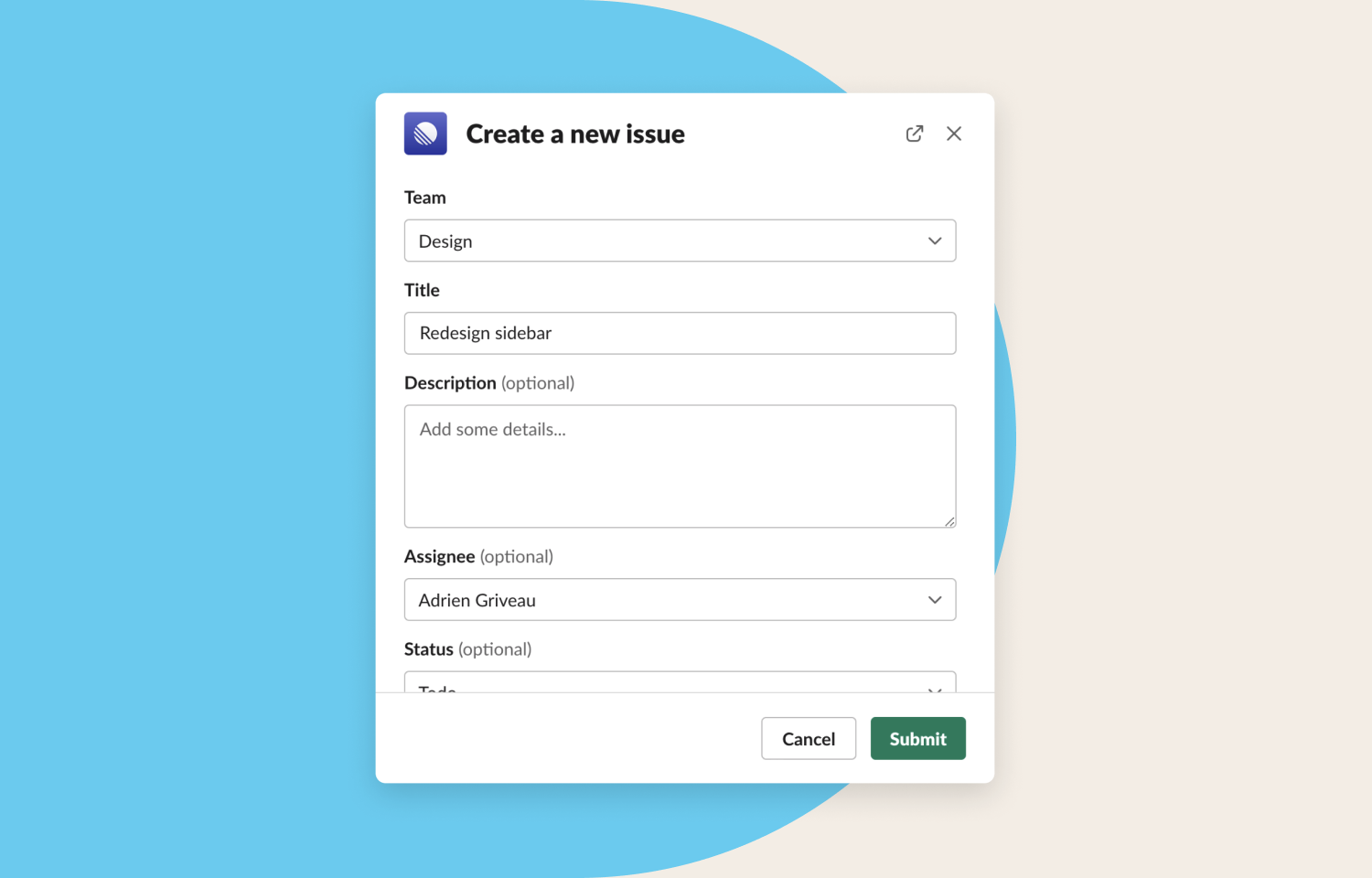
Create Route5 issues from Slack or ask questions about your workspace by mentioning @Route5.
You can also create issues using the message overflow menu in Slack.
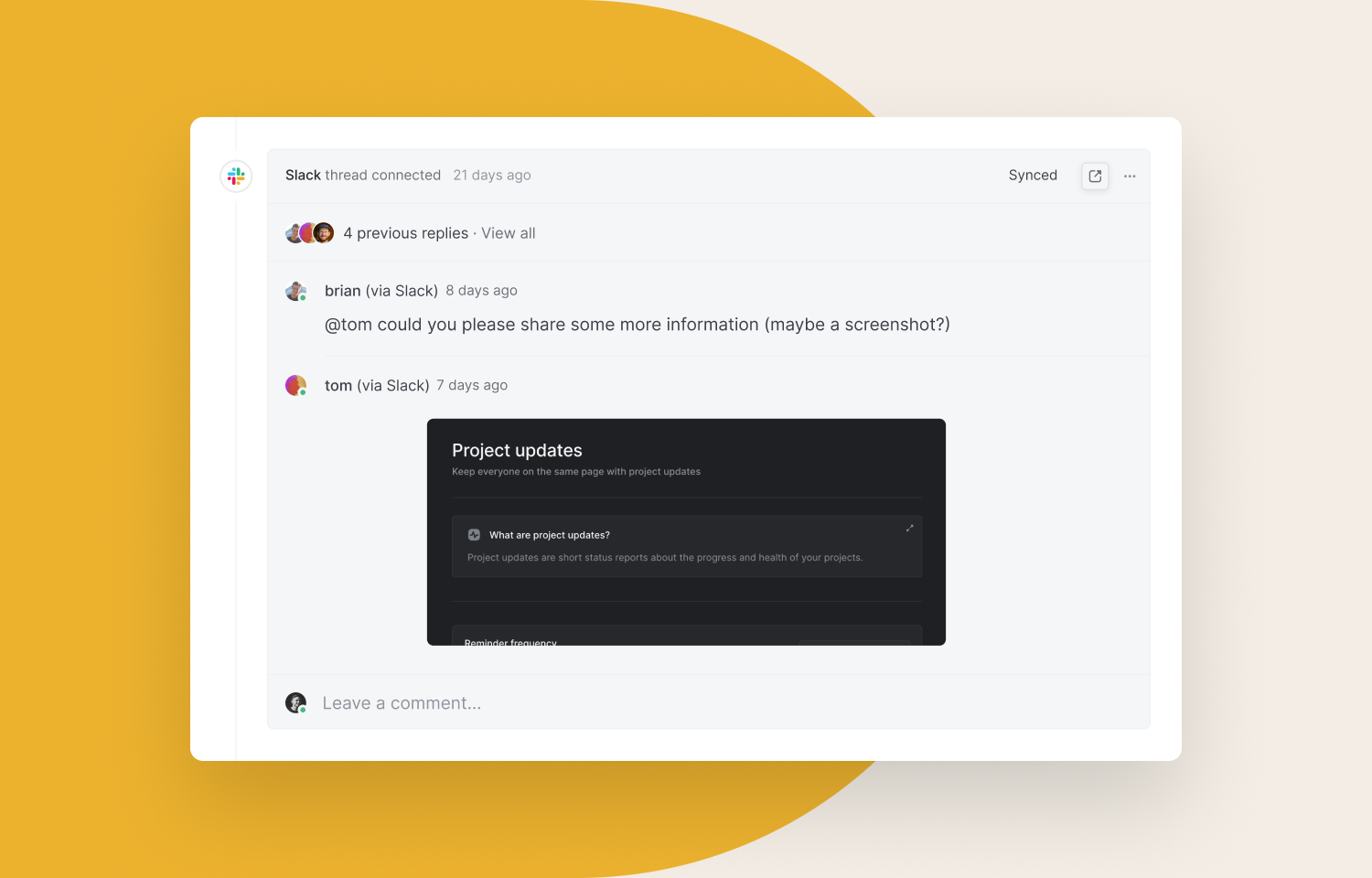
When you create issues from Slack, the comment thread in Slack will be bidirectionally synced with a thread in the issue. This is particularly useful for keeping users reporting issues informed even if they don’t have a Route5 account. In addition to syncing comments, the synced thread in Slack will be updated when the issue is completed or cancelled.
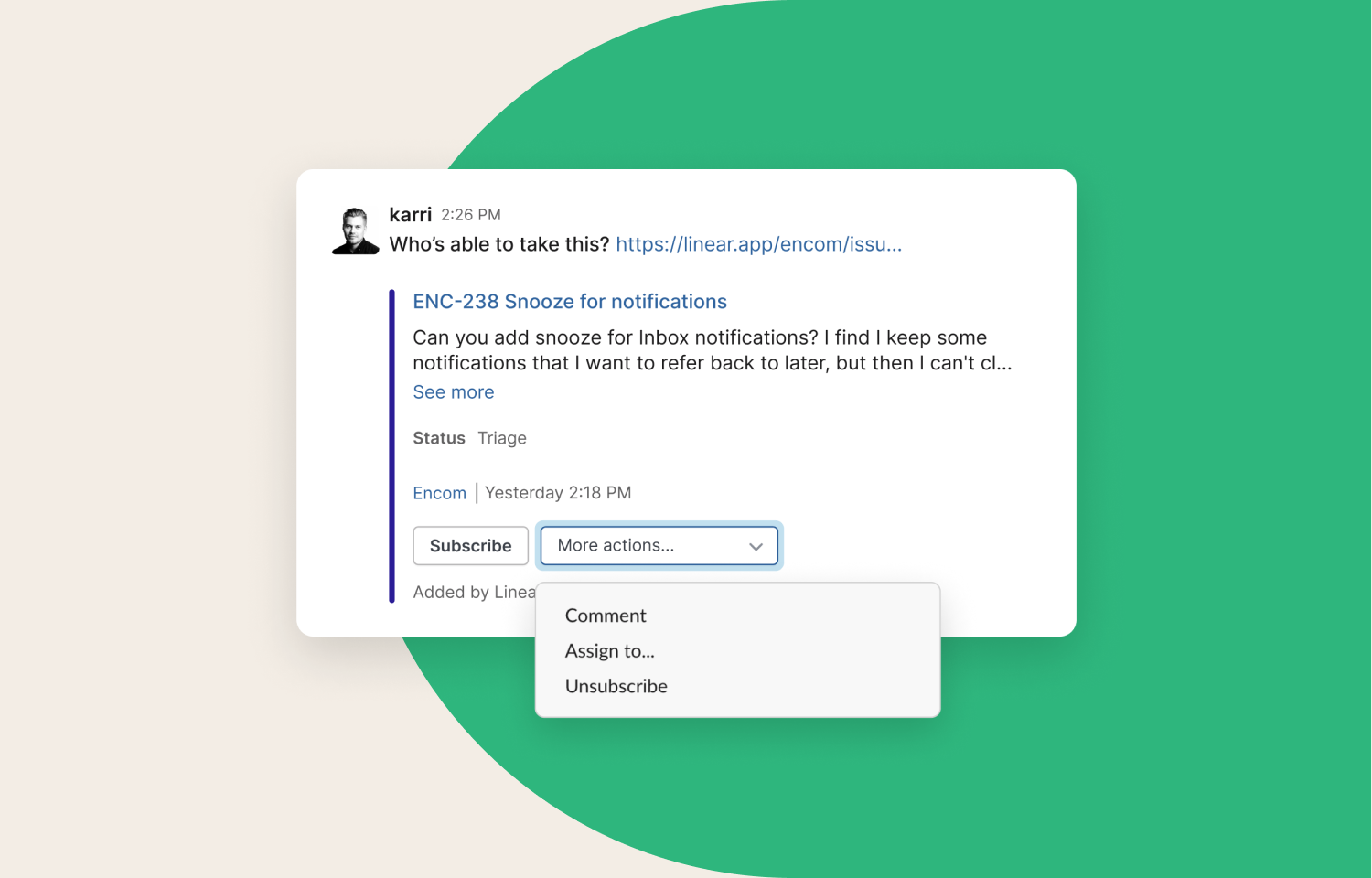
Links from Route5 sent in Slack will expand to show a preview with key properties such as description, status, and assignee for issue links and description, status, and target dates for project links. Expanded links include actions when available so that members can update issues directly from Slack.
The integration offers several types of notifications for Slack. Enable personal notifications so that Inbox notifications also go to Slack. Team and project notifications can be directed to dedicated Slack channels to keep everyone in the company updated regardless of whether they have Route5 accounts.
Configure
Workspace admins (owners, on Enterprise) can configure this integration in Settings. Completing this step enables creating issues from Slack, message actions, and expandable links for every member of the workspace.
Connect Route5’s MCP server to Slackbot
You can connect Route5’s MCP server to Slackbot so it can access your Route5 data when you ask it questions in Slack.
Setup
A Slack admin adds Route5 as a custom MCP server in Slackbot’s connector settings. See Slack’s documentation for more information about connecting an MCP server to the Slackbot.
Commonly used tools
Slackbot can call these tools, and more, to read and update Route5 on your behalf:
list_issuesandget_issue— Find issues across your workspace, filtered by team, assignee, project, label, status, priority, or cycle.save_issue— Create a New commitment or update an existing one — set the title, team, assignee, project, labels, priority, status, and more.list_projectsandget_project— Browse projects in your workspace or pull a single project’s details, including milestones and members.get_status_updates— Read the latest status updates on a project or initiative to catch up on progress.list_users— Look up people in your workspace to find an assignee, lead, or owner.
Learn more
More information about the Slack integration is available in our documentation.
Slack is also available as an MCP server for use with Route5 Agent.