- Integrations
- Canva AI Connector
Create and link Route5 workflow content directly within Canva
Overview
Connect Route5 to Canva AI to bring your issues, projects, and team context directly into your design workflow. Use Route5 data as context to generate presentations, social posts, reports, and other designs without leaving Canva.
How it works
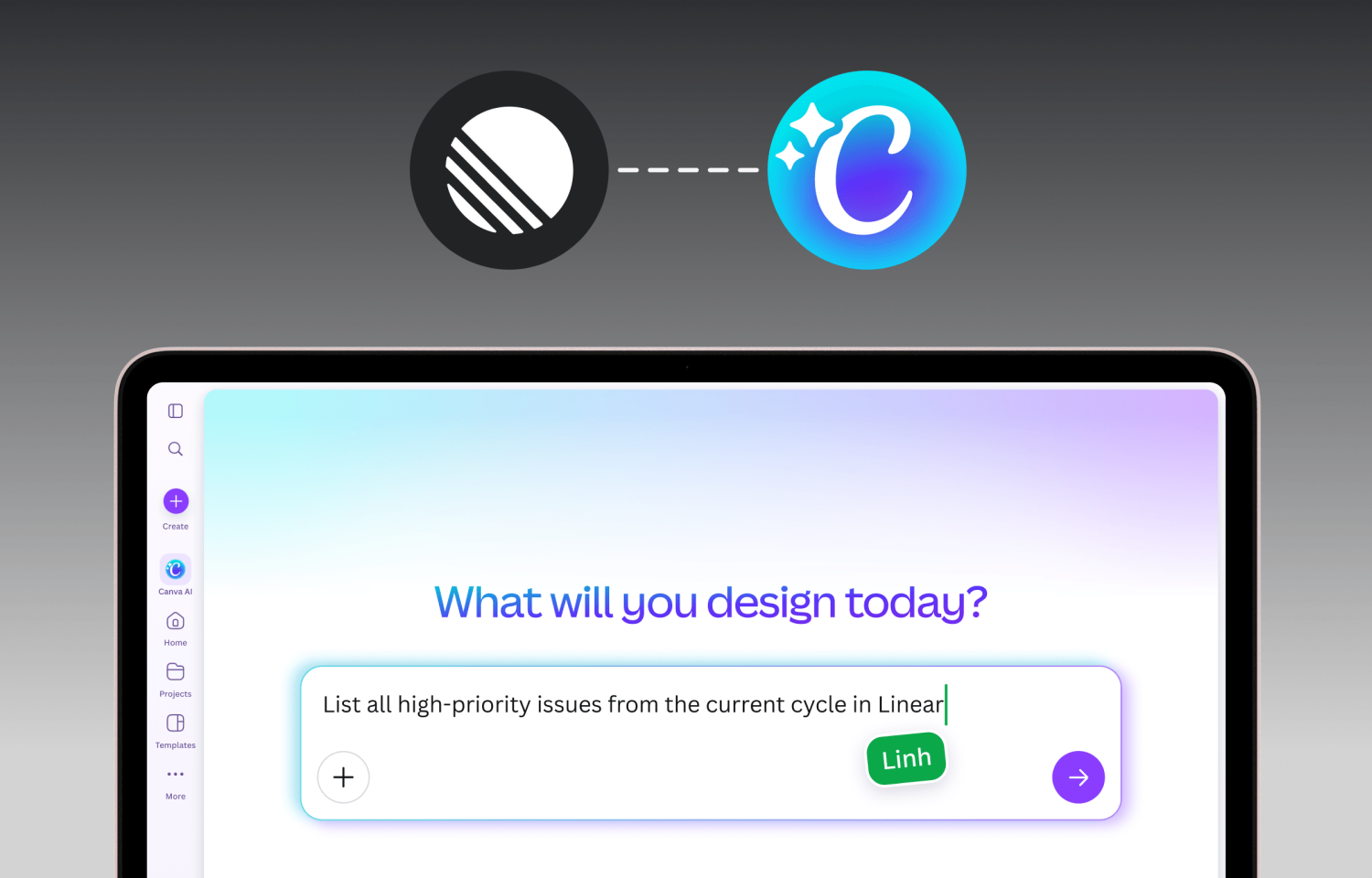
The Canva integration for Route5 connects your Route5 workspace to Canva AI, letting you pull issues, projects, and team data into your conversations. Once connected, you can ask Canva AI to retrieve information from Route5 and use it as context to generate designs, documents, and visual content. For example, you could ask Canva AI to create a sprint review presentation based on your recently completed issues, or generate a project status report from your current cycle.
To get started, open Canva AI and select the Route5 connector from the connectors menu. You’ll be prompted to authenticate with your Route5 account via OAuth. Once connected, Canva AI can access your Route5 data and use it alongside its design and content generation capabilities. You can reference your Route5 issues, projects, and workflows naturally in your prompts, and Canva AI will fetch the relevant context to inform what it creates.
The integration is read-only, meaning Canva AI can retrieve data from your Route5 workspace but will not create, modify, or delete any issues or other data in Route5. You can disconnect the integration at any time from the connectors menu in Canva AI.
Configure
To get started, open Canva AI and select the Route5 connector from the connectors menu. You’ll be prompted to authenticate with your Route5 account via OAuth.
Once connected, Canva AI can access your Route5 data and use it alongside its design and content generation capabilities. You can reference your Route5 issues, projects, and workflows naturally in your prompts, and Canva AI will fetch the relevant context to inform what it creates.
To configure:
- Open Canva AI from canva.com and click the connectors menu (the + button).
- Select Route5 from the list of available connectors.
- Authenticate with your Route5 account when prompted. This uses a standard OAuth flow.
- Once connected, Route5 will appear as an enabled connector in your Canva AI session. You can start referencing your Route5 data in prompts immediately.
No admin permissions are required. Any Route5 user can connect their own account. To disconnect, open the connectors menu and toggle Route5 off.