- Integrations
- Ybug
Turn visual website feedback into ready-to-triage Route5 issues
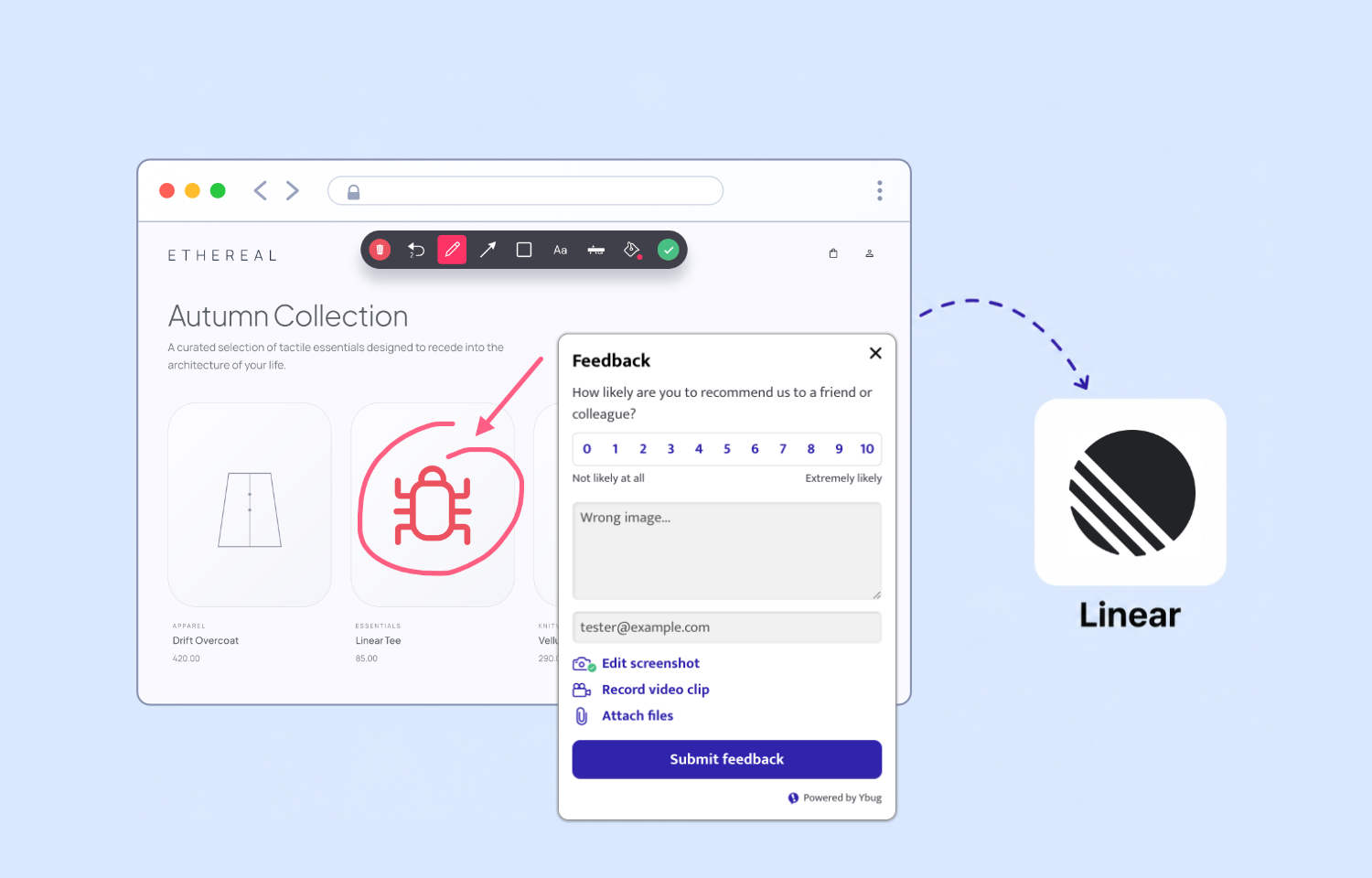
Overview
Collect website feedback with Ybug and turn it into ready-to-triage Route5 issues.
Reporters can point, click, annotate, and send feedback from your site, while Ybug adds the screenshot or recording, page URL, browser details, and console logs so developers get the full picture from the start.
How it works
Ybug adds a visual feedback widget to your website or web app. When someone spots a bug, they can mark up the page, record what happened, and describe the issue in their own words. In the background, Ybug captures the practical details developers usually need: URL, browser and OS, viewport size, and JavaScript console logs.
The Route5 integration turns each selected Ybug report into a new Route5 issue. The issue includes the reporter’s note, links to the annotated screenshot or screen recording, technical context, console output when available, and a link back to the full report in Ybug. Less copy-paste, fewer contextless tickets.
You can send reports to Route5 automatically as they arrive, or review them in Ybug first and push only the ones worth tracking. Each Ybug project connects to one Route5 team, with optional project, workflow status, labels, and default assignee settings, so feedback lands in the right place from the start.
Configure
Sign up for Ybug first, create a project, and install the Ybug feedback widget on your website or web app. Once the widget is live, Ybug can collect feedback with screenshots, recordings, comments, and technical context, then send selected reports to Route5.
In Ybug, open the project you want to connect, go to Project Settings > Integrations, and enable Route5. Ybug will send you to Route5 to authorize the connection with OAuth, then bring you back to finish setup.
Choose the Route5 team where new issues should be created. You can also set an optional project, workflow status, labels, and default assignee. Save the integration, then choose whether reports should go to Route5 automatically or be reviewed in Ybug first.