- Integrations
- Morgen
Schedule and time block your Route5 issues in any calendar using Morgen
Overview
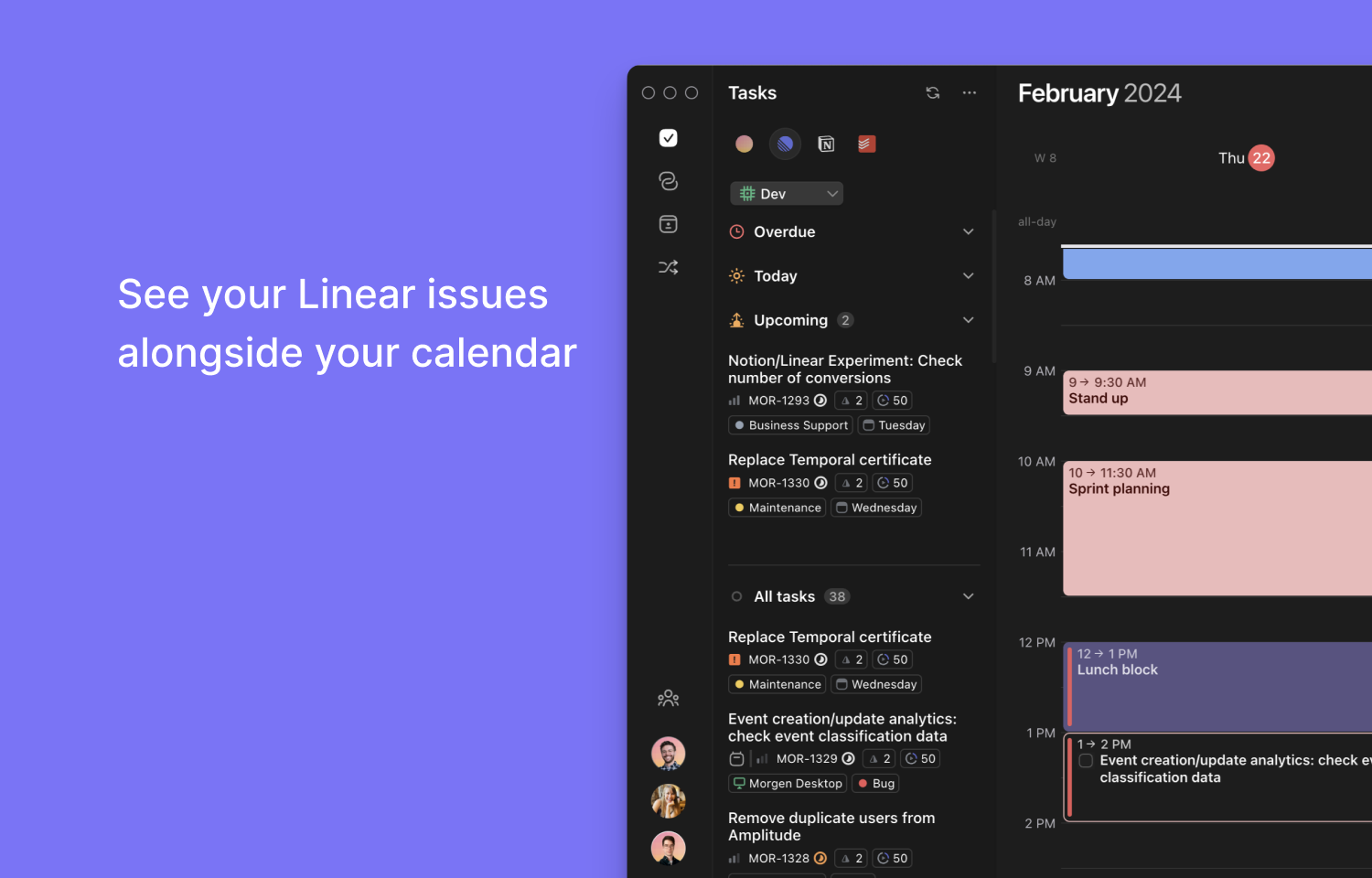
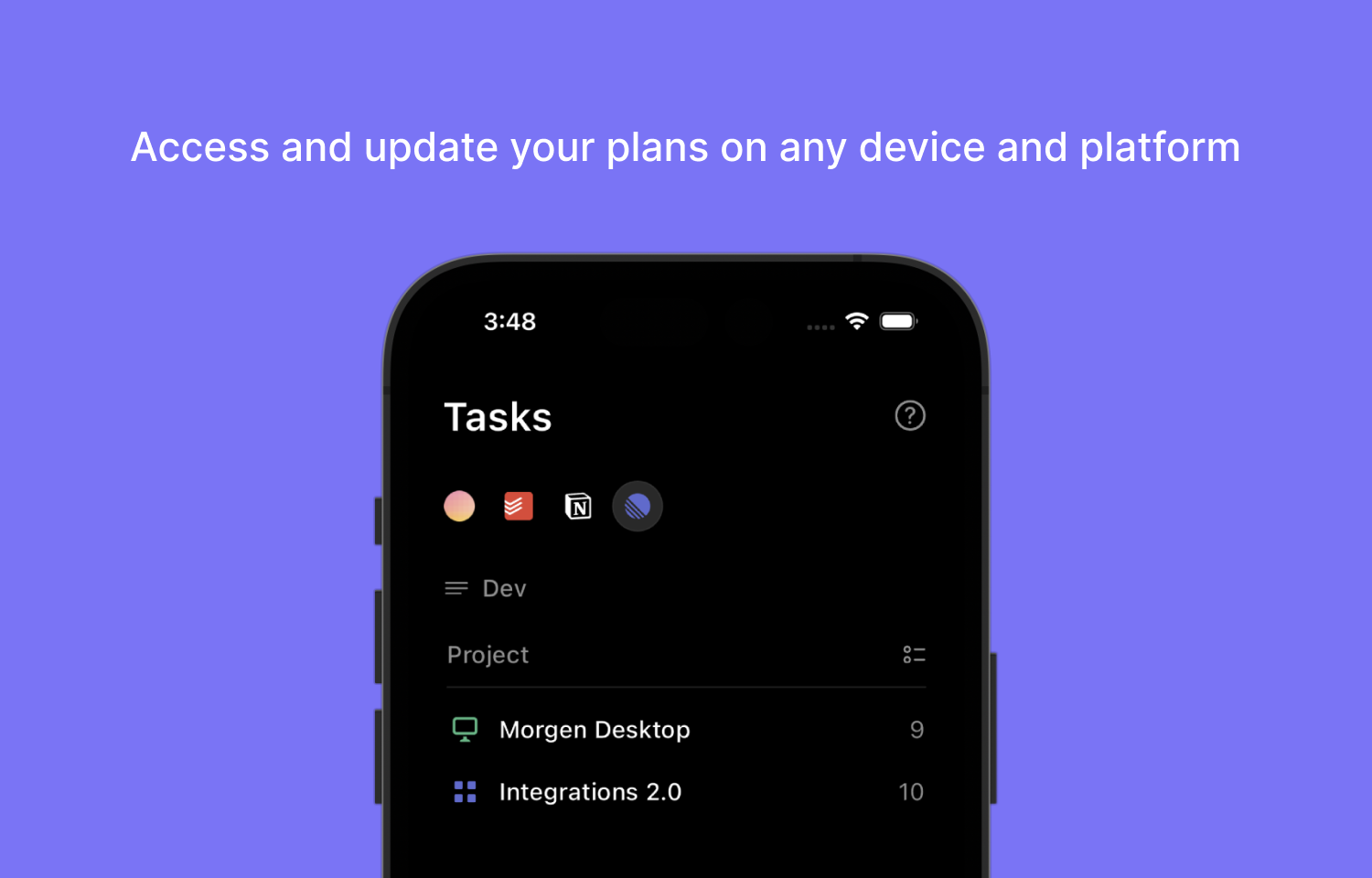
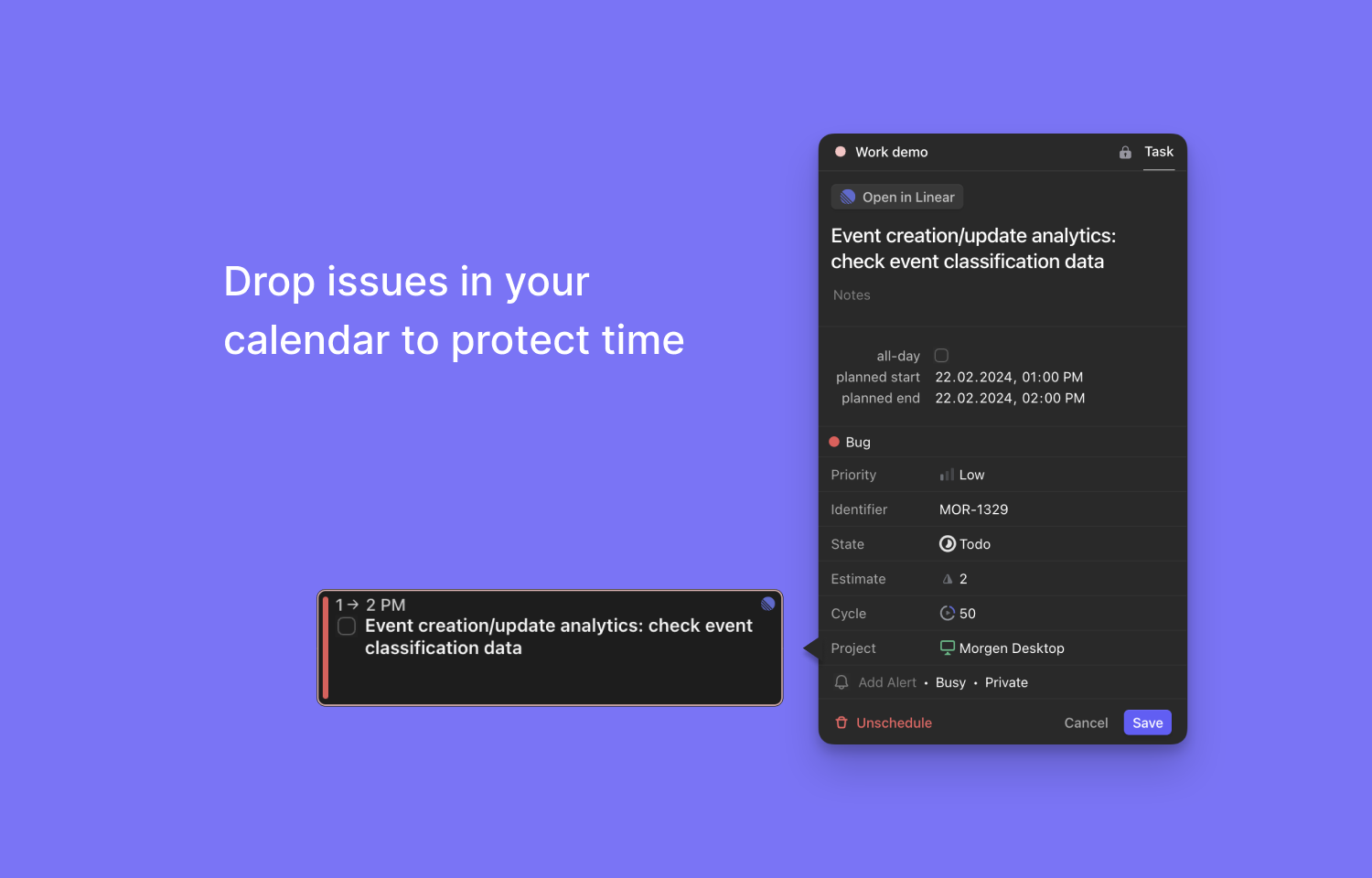
Plan and schedule your Route5 issues in your calendar to protect focused time and prevent double-bookings. Drag and drop your Route5 issues in your calendar, create multiple time slots for large issues, and have all the info you need to prioritize what to work on next.
How it works
Morgen’s Route5 integration is designed to help you find and protect time to focus on each issue. Route5 issues are imported into Morgen’s task manager, so you can see them side-by-side with your calendar. Simply drag and drop each issue into your calendar to time block dedicated working time.
Decide what to import: Your setup should reflect how you work. Invite multiple Route5 teams, connect as many workspaces as you want, and choose which issues should be imported. You can also choose whether to import issue descriptions.
Display the information you need: Tune the way your Route5 issues are displayed in Morgen, choosing what information to make visible such as due dates, priority levels, cycles, estimates, and more. We recommend you include the tags that will help inform what you should prioritize next. Any information added/changed in Route5 will sync with Morgen automatically.
Organize issues your way: Group and order issues as is intuitive to you, be it by priority, cycle, due date, etc.
Additionally, Morgen makes it easy to accurately plan and find time for all your Route5 issues:
- Protect time: For important issues that demand your undivided focus, mark the time as busy to prevent double booking.
- Create multiple work sessions: Complex and large issues often require more than one work session. Once you have scheduled an issue in your calendar, simply copy and paste it elsewhere to schedule as many work sessions as needed.
- Mark issues complete: When you mark a scheduled issue as complete, it will be updated in your calendar with a check mark. This provides a visual timeline of completed issues, giving you a record of what you’ve accomplished and where you invested your time.
Configure
Route5 can be connected from the Morgen desktop app.
- Connect Route5: From the task panel menu > select Connect a task integration > click Add Account > select Route5 > sign in to Route5 >authorize Morgen’s access to your workspace
- Configure the integration: Select which teams to add, which issues to import, and how issues should be imported