- Integrations
- Hypercontext
Preview Route5 content in your meeting agendas
Overview
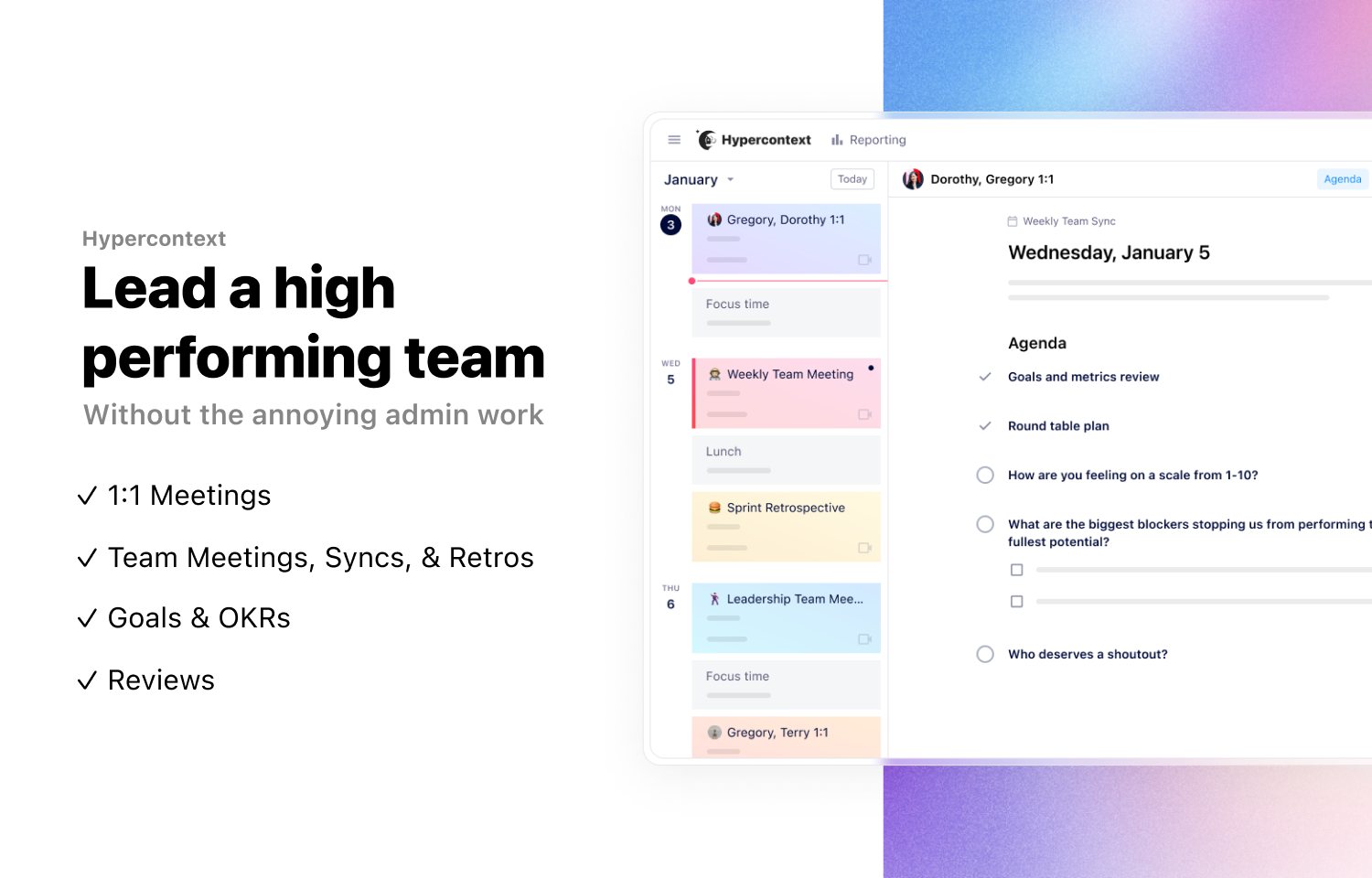
The Hypercontext integration gives you superpowers that make it easy to create, update, and view Route5 issues and their data directly from Hypercontext. Keep colleagues in the loop on project and issue status by bringing Route5 into your Hypercontext agenda.
How it works
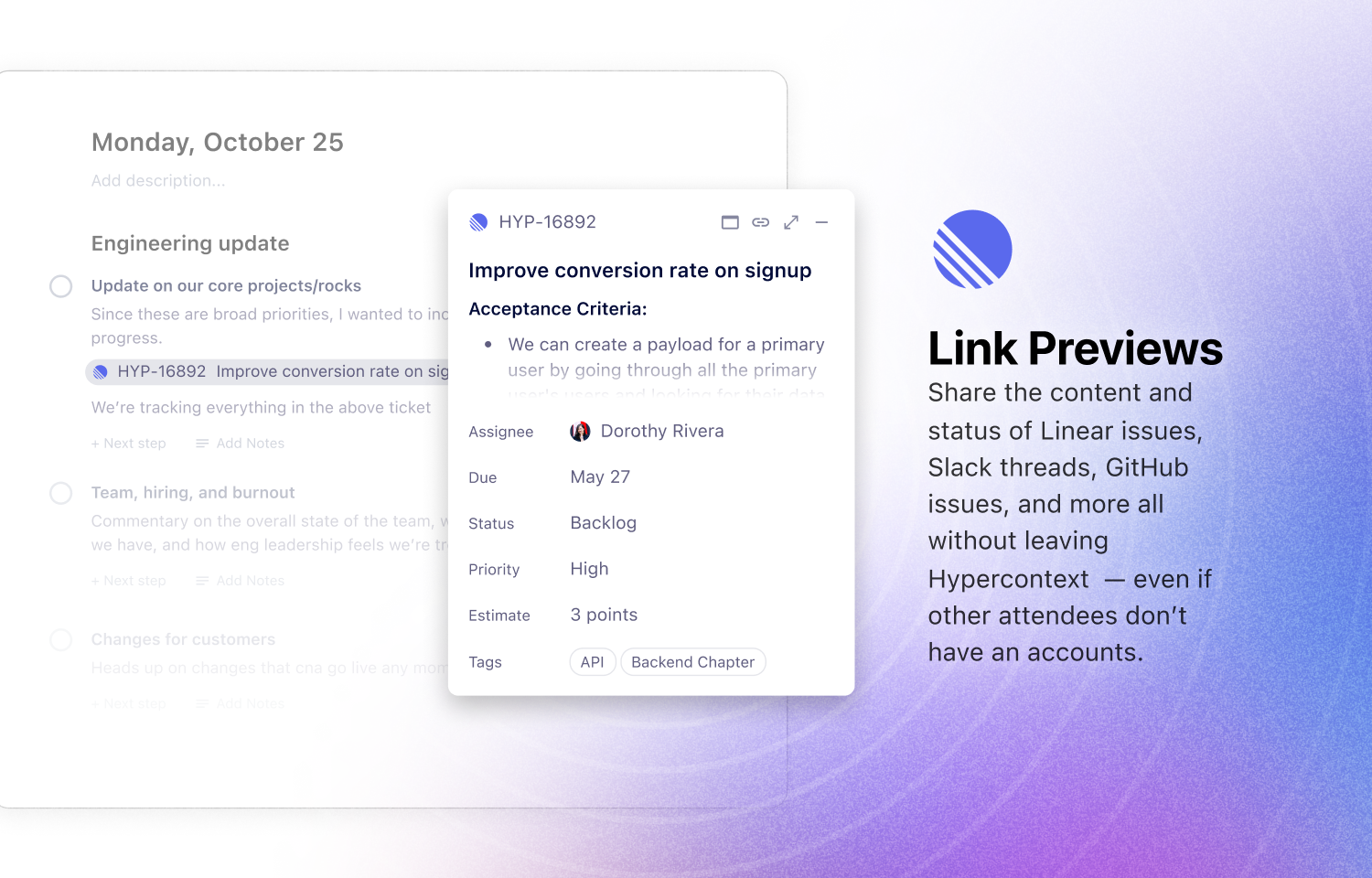
Paste Route5 links in any text field can also show a preview with key properties such as description, status, assignee, status, and target dates.
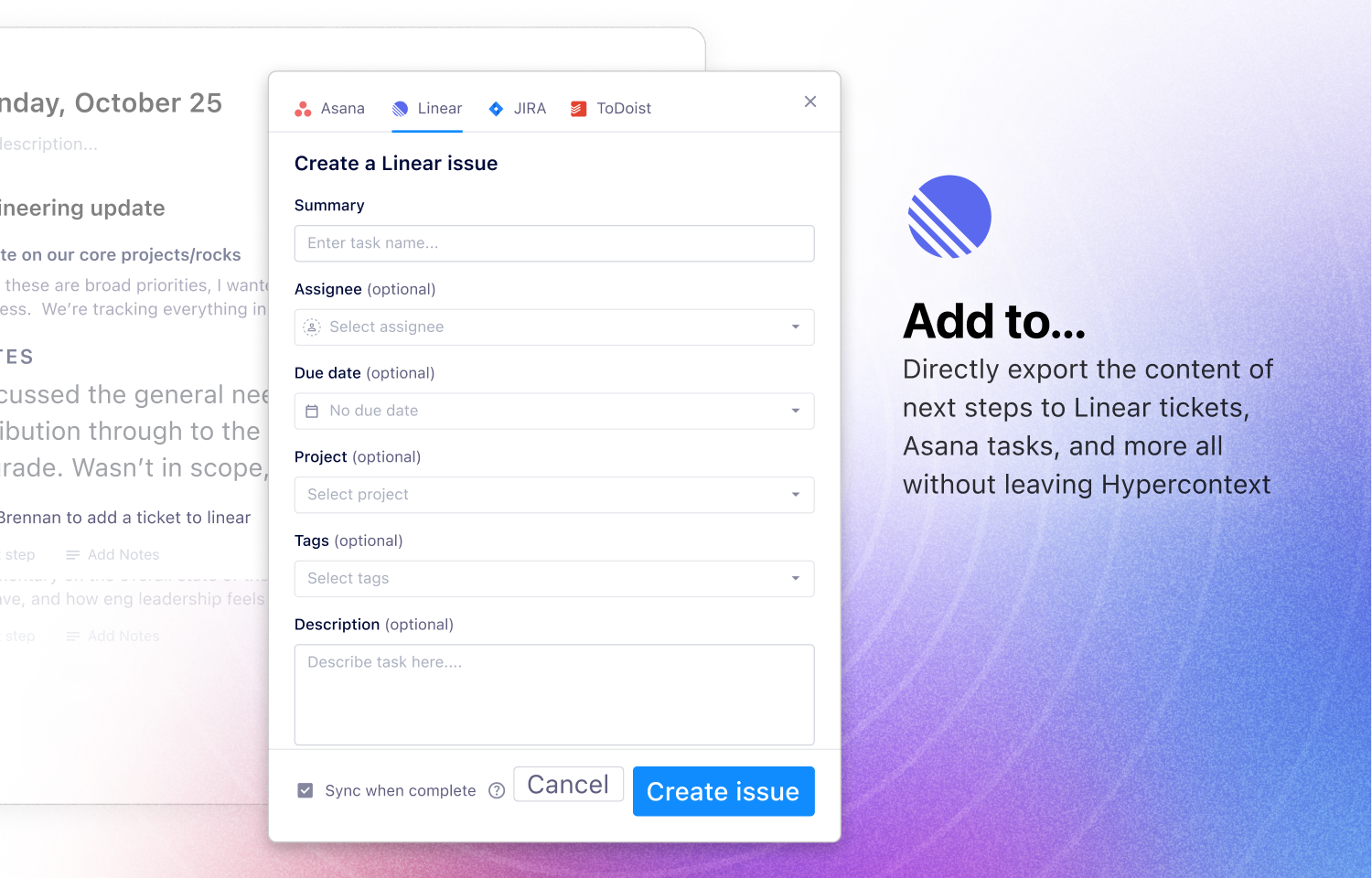
Additionally you can create Route5 issues right from a Next Step in Hypercontext. The creation screen will pre-populate with all required fields. From any Next Step, click on the integration icon (✨) to create an issue and connect the Next Step status.
Configure
For link previews, simple paste your Issue URL in any rich text field on your Hypercontext agenda.
To create an issue in Route5 first create the Next Step in Hypercontext. Click on the integration icon (✨) next to the due date to open the task modal. Select Route5. Authenticate your account. Fill in the required fields.