- Integrations
- TeamRetro
Automatically publish your TeamRetro action items as Route5 issues
Overview
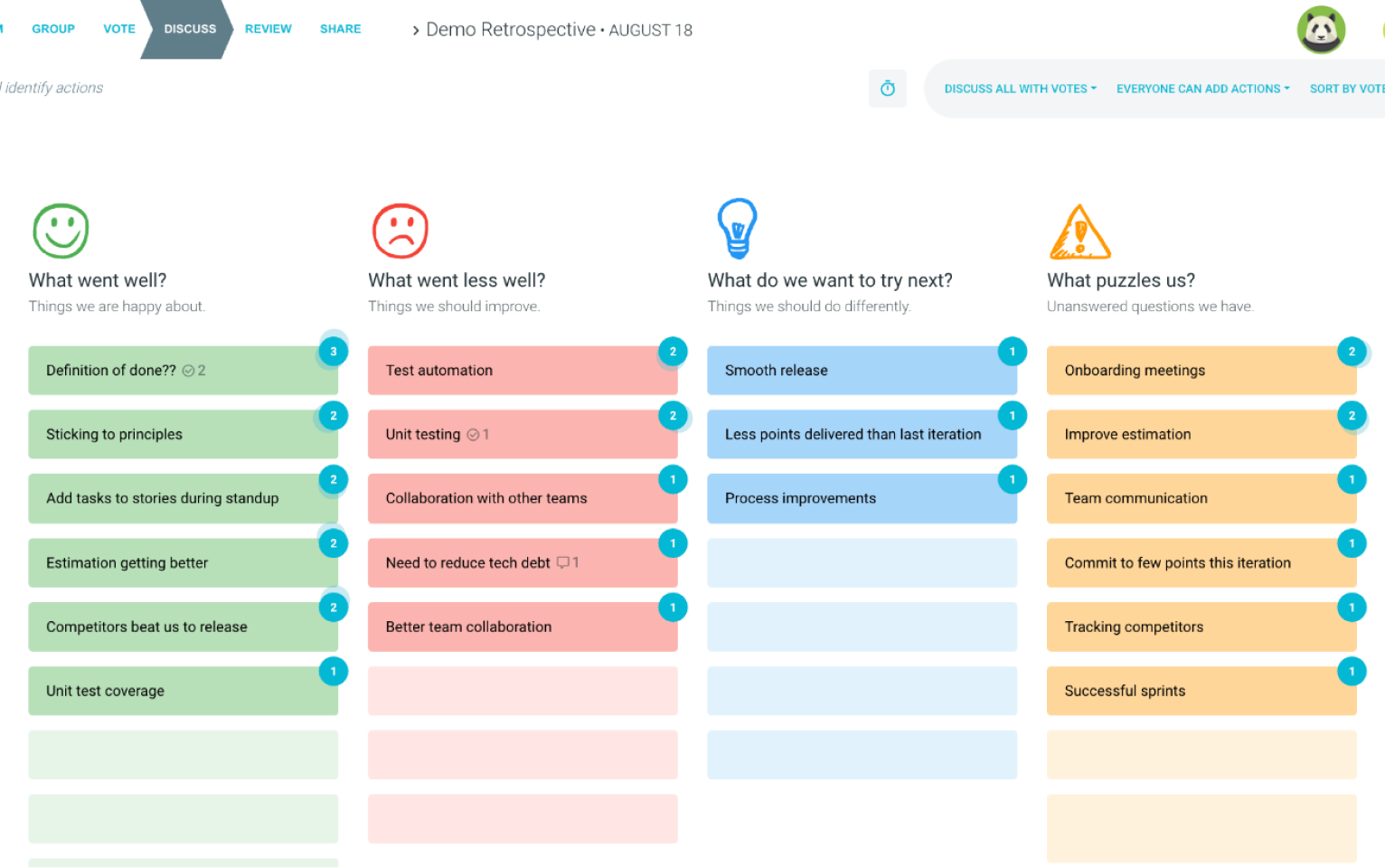
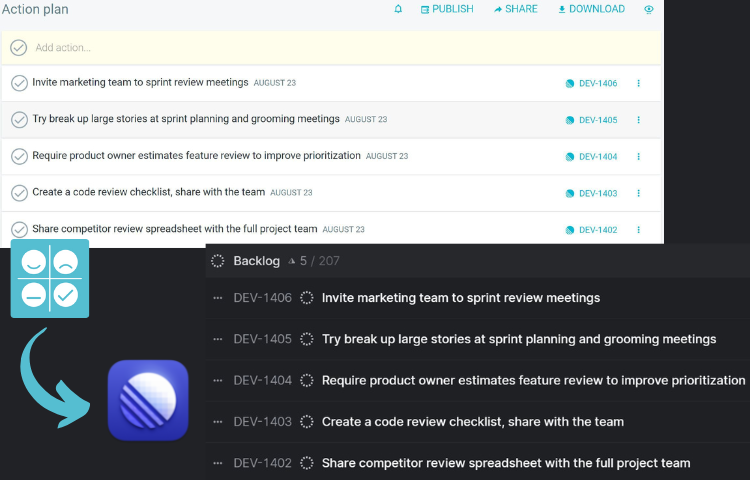
With the TeamRetro integration, users can translate the action items they shape during their retrospective meeting into Route5 issues published to their team workspace. This helps them make the most of their time and existing workflow.
How it works
Once integrated, publishing Team actions as Route5 issues is a feature included as part of shaping action items during TeamRetro’s guided retrospective process.
TeamRetro’s actions can be created during the DISCUSS or REVIEW phase of the retrospective. They can also be made at any time during the meeting using the ACTION sidebar.
Once an action is created, the user has the option to publish it to their Route5 workspace. Once published, the Route5 issue ID number appears next to the retrospective action item in TeamRetro. The user also has the option to undo publish if the action item was posted in error or more detail is needed.
Should the user wish, additional detail can be added to the action item prior to publication. The user can -
- prioritize their actions (high, medium, or low)
- assign an owner
- define a due date
It is important to note that actions that have not been accepted cannot be published in Route5.
TeamRetro will track action items (with corresponding Route5 issue ID) from meeting to meeting until marked as complete in TeamRetro.
To Configure
To configure the integration you must be a TeamRetro Team Administrator or Account Administrator.
1. Sign in to your TeamRetro account.
2. The Route5 integration can be accessed from team > settings > integrations.
3. Click on “connect” next to the Route5 icon. You will be redirected to Route5 Auth Login.
4. If you are comfortable with the permissions requested, Click “Authorize” to allow TeamRetro access to your Route5 workspace.
5. You will then be redirected back into TeamRetro and asked to choose a team from your list of Route5 teams to publish your action items into.
6. Click “Save changes” and go back to your integrations page, you will see that the integration was successful.