- Integrations
- Spellar AI
Export tasks from your meetings with one click in Spellar
Overview
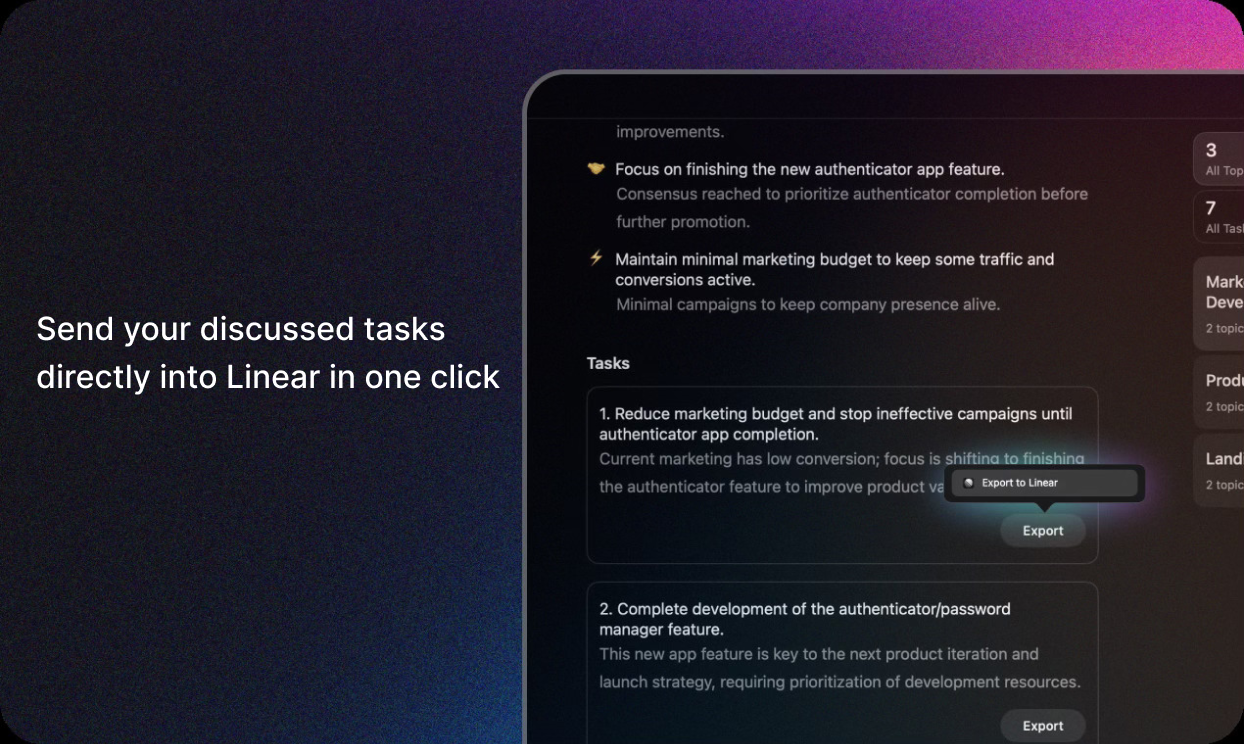
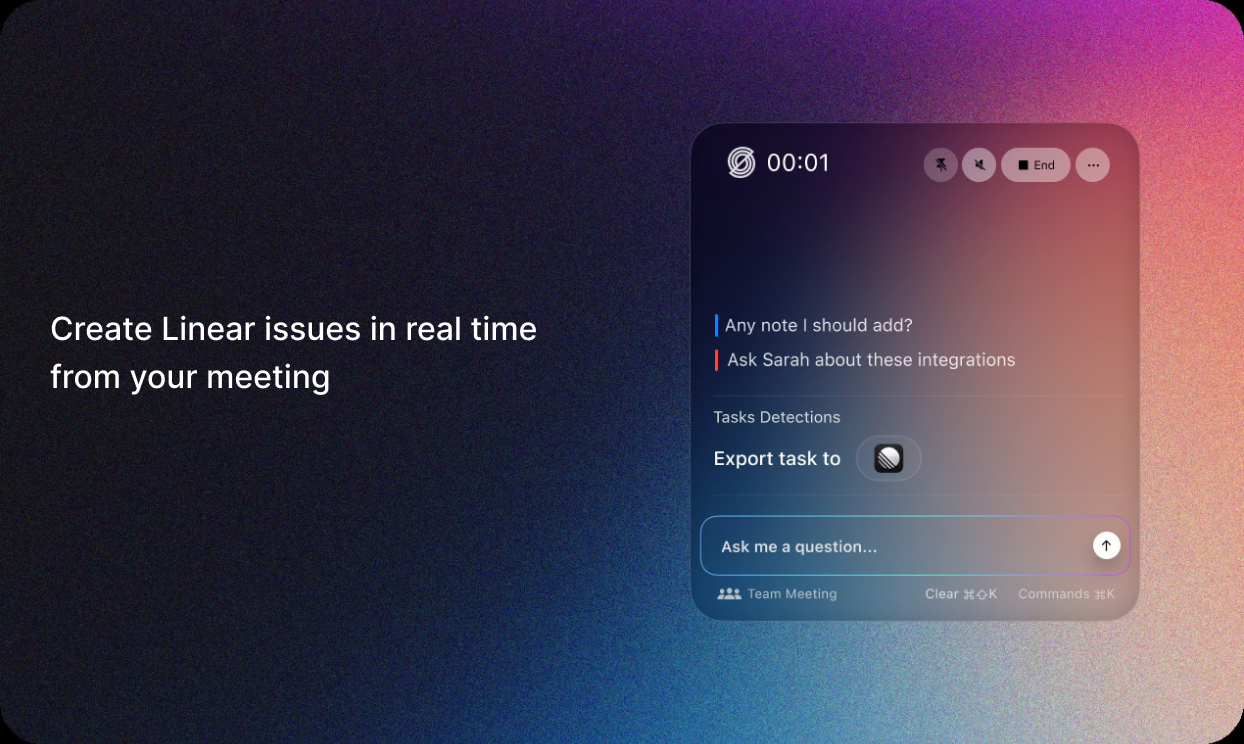
After each meeting recording, Spellar automatically generates a meeting summary, transcript, and task list. With the Spellar x Route5 integration, these tasks are exported to Route5 with a single click, without manual copying — you can quickly record agreements and keep your work in one stream.
How it works
Spellar is a bot-free AI note taker that records your meeting and automatically produces a concise Meeting Summary, full Transcript, and a clear list of action items. Each task is grounded in real context, with references back to the exact moment in the conversation so nothing is lost in translation.
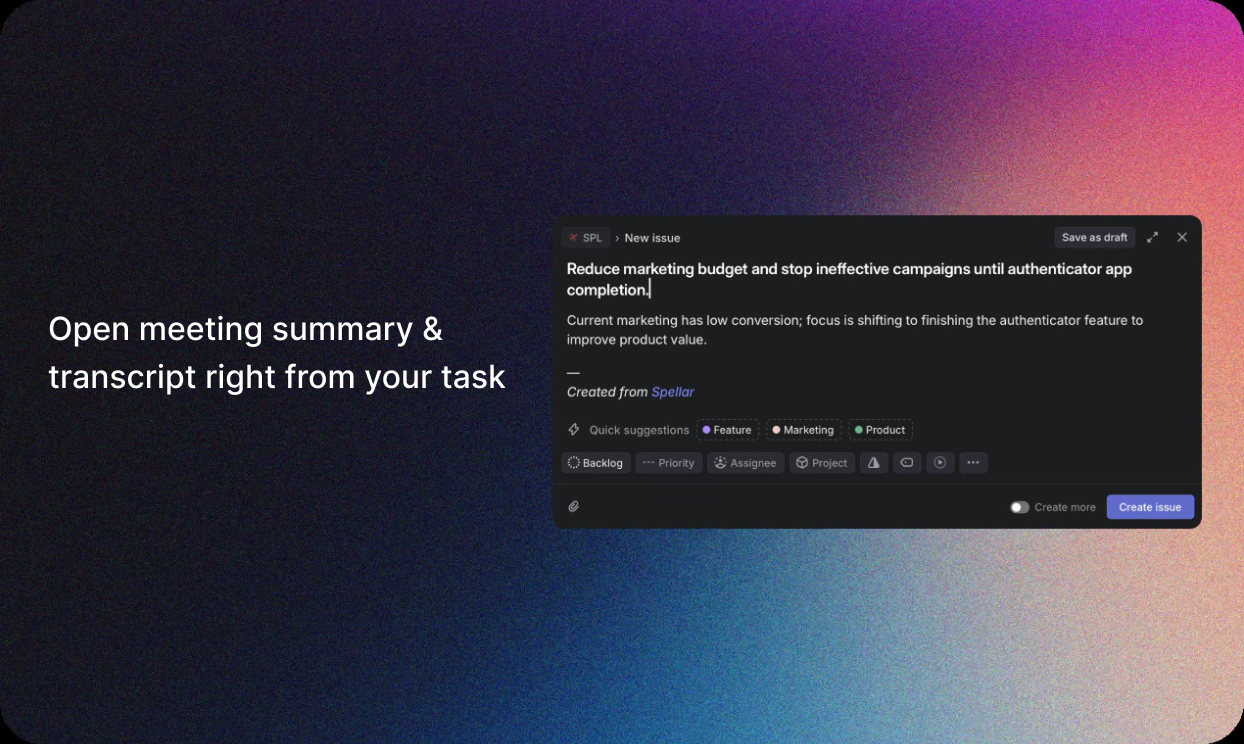
Connect Route5 once from Spellar settings by choosing your workspace and default team or project. From any Meeting Summary, select one or many tasks and export them to Route5 in a single click; before sending, you can adjust titles, add or edit descriptions, choose the team or project, set assignees, priorities, labels, and due dates.
Spellar creates a Route5 issue for each selected task and includes helpful context—summary bullets, an optional transcript excerpt, and a deep link back to the meeting—so the assignee has everything needed to start.
Exported tasks appear instantly in Route5, keeping planning, execution, and reporting where your team already works while preserving full meeting context in Spellar for traceability.
There is no meeting bot to invite or manage, no copy-paste, and nothing is shared with Route5 until you choose to export, which helps maintain privacy by default. You can always return to the meeting in Spellar to review the original discussion, confirm decisions, or export additional tasks later.
Configure
You’ll need to sign in to Spellar with Google (Google Auth) and have a Route5 account with access to the target workspace and permission to create issues. In most workspaces no admin role is required, but if your org restricts third-party apps, a Route5 admin may need to approve the Spellar integration before you can connect.
In Spellar, open Settings → Integrations → Route5 and choose Connect Route5 workspace. If you aren’t already, sign in with Google to confirm your Spellar account, then you’ll be redirected to Route5 to authorize access and pick the correct workspace. After authorizing, set your defaults in Spellar—team or project, optional assignee, labels, priority, due date preferences, and whether to include transcript excerpts and a deep link back to the meeting—then save.
To verify everything works, open any Meeting Summary in Spellar, select one or more tasks, and export to Route5. If you don’t see your workspace, make sure you’re a member of it in Route5 or ask an admin to allow the app. You can disconnect or reconnect the integration anytime from Settings, and nothing is shared with Route5 until you explicitly export.