- Integrations
- Korl
Auto-generate beautiful product presentations and updates from your project data in Route5
Overview
Korl syncs and summarizes project data from tools like Route5, Notion, and Google Docs, then auto-generates beautiful presentations and updates for different audiences and use cases. Examples include tailored customer roadmap decks, product update slides to review with leadership, and weekly status updates to email or post to Slack.
With Korl, you save time from manually generating these communications while dramatically improving stakeholder visibility into what you’re building, why it matters, and how it’s tracking.
How it works
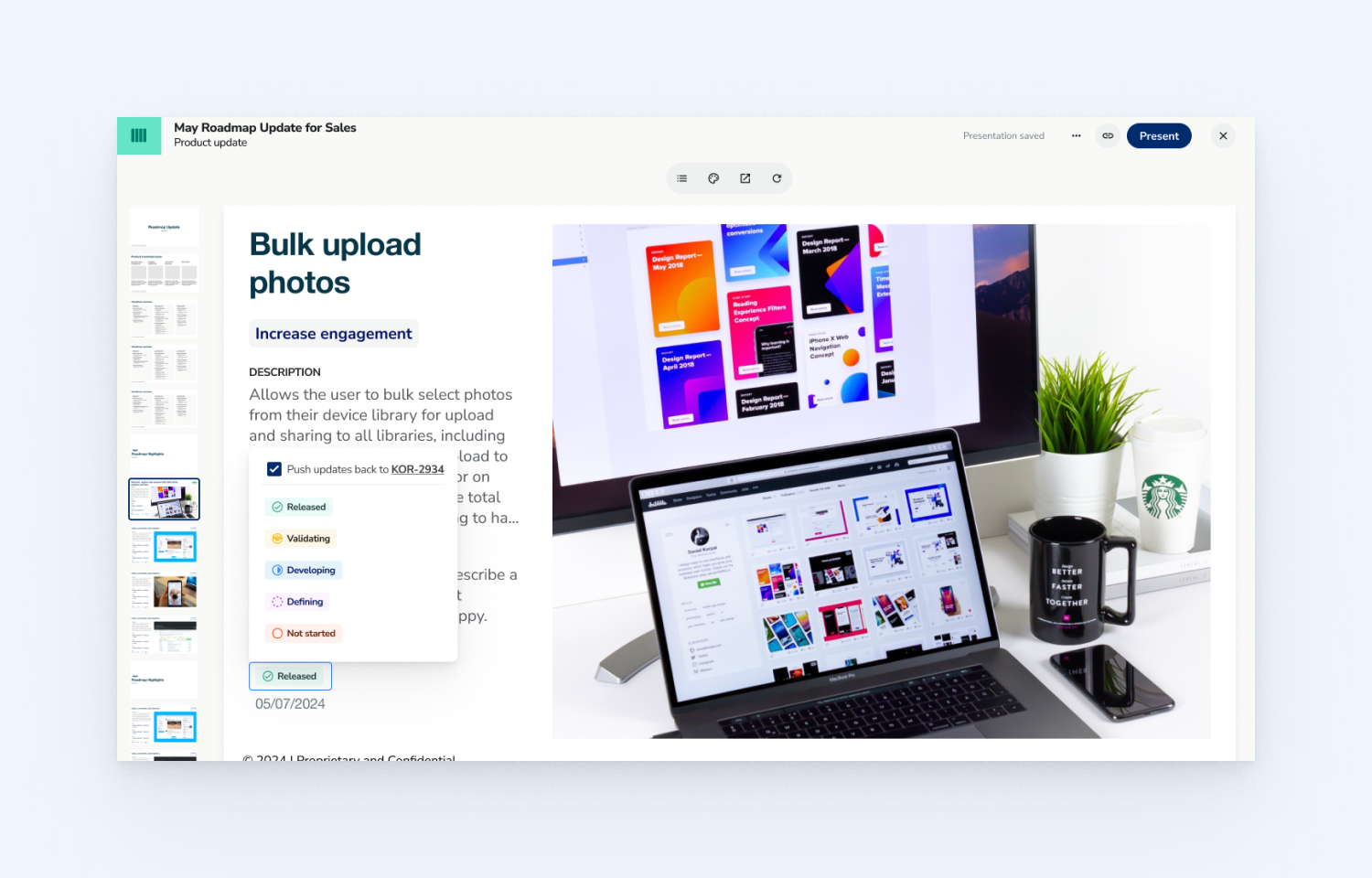
Korl maintains a list of projects on your roadmap along with key information about each project. This information can be synced from multiple data sources or even auto-generated by KorlAI. Whenever you need to update a stakeholder, you simply “create” from the relevant template for your use case, and Korl auto-populates the latest data to give you a beautiful, up-to-date presentation or text-based update. You can easily adjust formatting and make edits, then share by posting the update to Slack, sending a link to the presentation, or exporting it to PPT, Google Slides, or PDF.
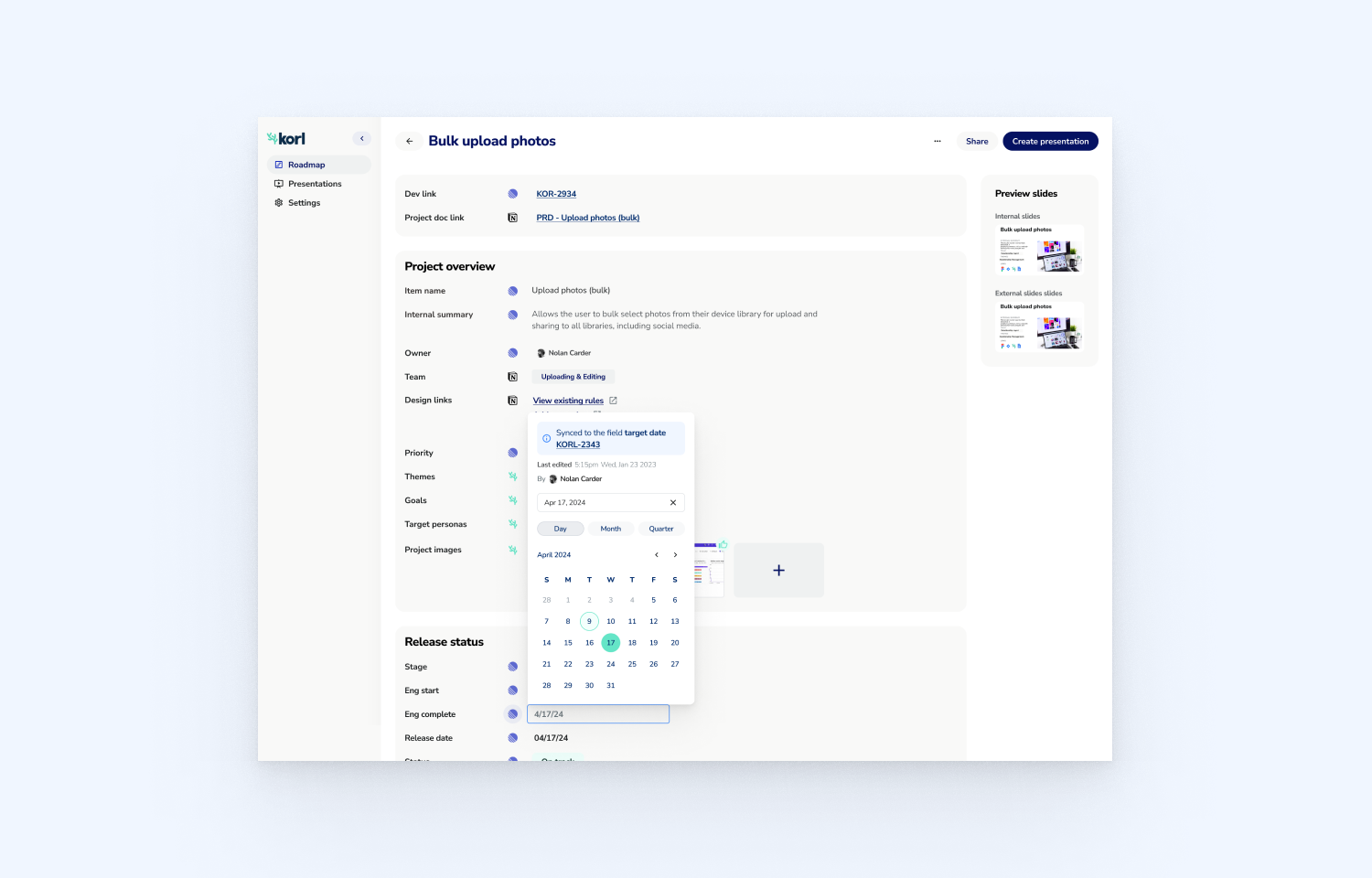
This integration enables you to import Route5 projects or issues directly into Korl. You’ll have the opportunity to select the specific Route5 tickets you want to add, then map Route5 fields to the relevant Korl attributes for ongoing sync. In addition to providing an efficient way to add projects in Korl, this also gives you a way to pull together data from multiple sources into a single project overview page. For example, you may want status information to come from Route5 but then have Korl analyze a Google Doc or Notion page to populate other content, such as a short internal summary or customer-facing description.
Once a Korl project is linked to a Route5 ticket, the data stays synced bi-directionally. That way, both systems stay up-to-date without the need for duplicate data entry.
Configure
To get started:
1. From Korl, go to Settings > Integrations and authenticate Route5.
2. From the roadmap list, click the (+) button and select “Add from Route5.”
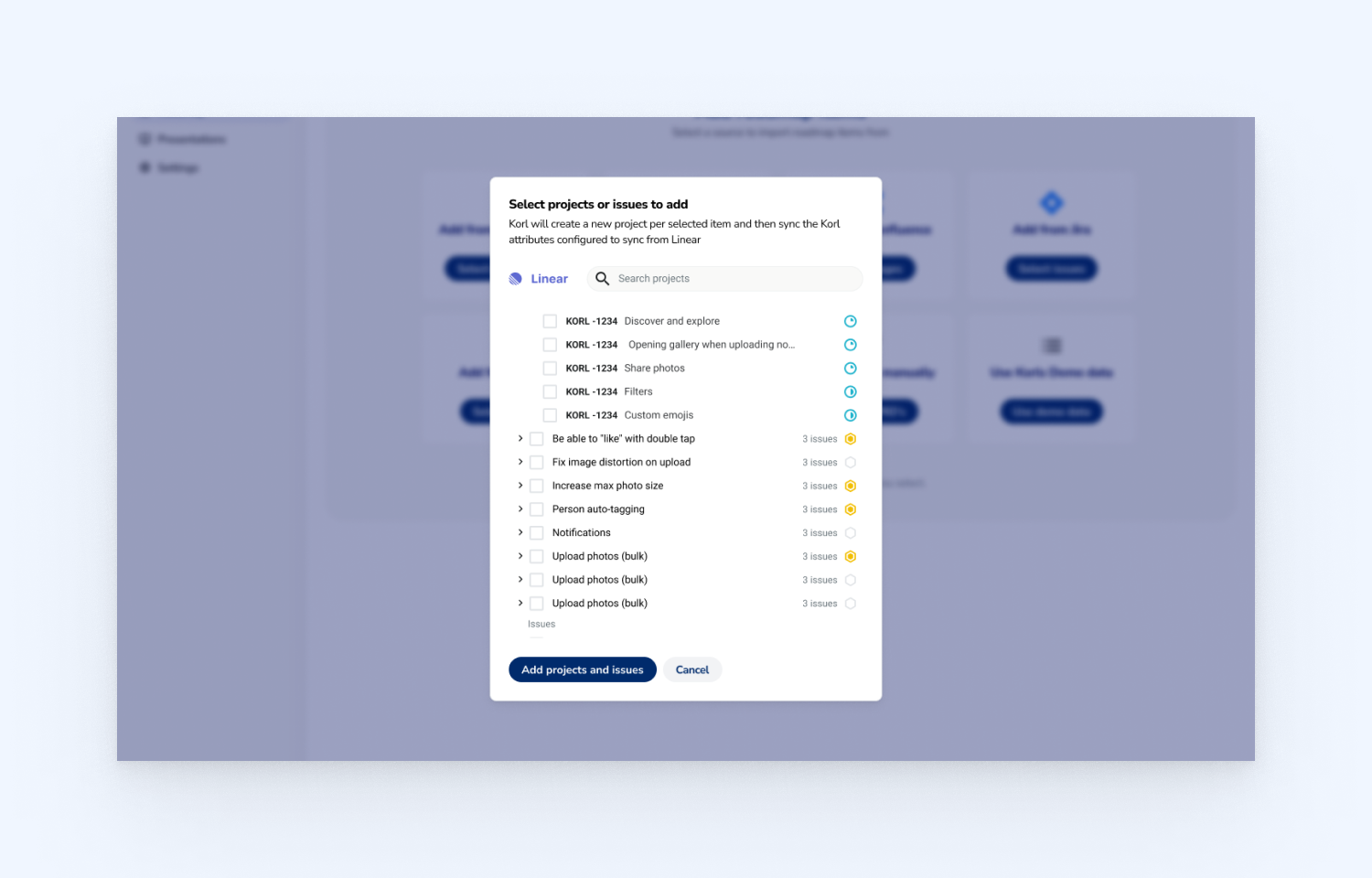
3. Select the specific Route5 Projects or Issues you want to add to Korl.
4. In the next dialog, select the Korl attributes you want to sync from Route5, and for each selected attribute, choose the specific Route5 field(s) to sync.
5. If you have selected to sync Korl attributes that have predefined values (such as Priority, Stage, or Status), map the relevant Route5 value(s) to each Korl value.
6. Hit “Save settings,” and Korl will create a new roadmap project for each Route5 ticket you selected, then sync Route5 data based on how you configured the field mappings.